
A Model Context Protocol (MCP) server that provides access to the Metropolitan Museum of Art Collection through natural language interactions. This server allows AI models to search The Met's art collection and retrieve artwork details (including images) via tool results.

- Features
- Transports
- Usage with ChatGPT
- Usage with Claude Desktop
- Usage with LibreChat
- Example Queries
- Contributing
- License
- Disclaimer
This server provides AI models the following tools to interact with the art collection of The Met
Lists all the valid departments at The Met
- Inputs:
- None
- Output:
Department ID: 1, Display Name: American Decorative Arts
Department ID: 3, Display Name: Ancient Near Eastern Art
...
Search for various objects in The Met based on the inputs.
-
Inputs:
q(string): The search term e.g. sunflowershasImages(boolean, optional, default: false): Only search for objects with imagestitle(boolean, optional, default: false): Returns objects that match the query, specifically searching against the title field for objects.departmentId(number, optional): Returns objects that are a part of a specific department.page(number, optional, default: 1): 1-based page number for results.pageSize(number, optional, default: 24): Number of Object IDs per page (max 100).
-
Outputs:
Total objects found: 54
Page: 1/3
Object IDs: 436532, 789578, 436840, 438722,...
Get a specific object from The Met containing all open access data about that object, including its image (if the image is available under Open Access).
If there is an image and returnImage is true, it is returned as an image content block in the tool result (base64-encoded JPEG).
Use this tool when the user asks for deeper details on a specific artwork and you already have an objectId.
- Inputs:
objectId(number): The id of the object to retrievereturnImage(boolean, optional, default: true): Whether to include the object's image (if available) in the tool result
- Outputs:
If returnImage is true
Title: Self-Portrait with a Straw Hat (obverse: The Potato Peeler) Artist: Vincent van Gogh Artist Bio: Dutch, Zundert 1853–1890 Auvers-sur-Oise Department: European Paintings Credit Line: Bequest of Miss Adelaide Milton de Groot (1876-1967), 1967 Medium: Oil on canvas Dimensions: 16 x 12 1/2 in. (40.6 x 31.8 cm) Primary Image URL: https://images.metmuseum.org/CRDImages/ep/original/DT1502_cropped2.jpg Tags: Men, Self-portraits**base64 encoding of jpeg image**
Launches an interactive MCP App (ui://met/explorer.html) that can search, filter, and inspect objects from within MCP clients that support Apps.
Recommended flow:
-
Use
open-met-explorerto launch and browse live search results (passqto start searching immediately). -
After creating a curated list from current results, use
get-museum-objectonly for items the user wants to explore in depth. -
Inputs (all optional):
q(string): Initial search term.hasImages(boolean, default: true): Prefer objects with images.title(boolean, default: false): Search titles only.departmentId(number): Pre-select a department filter.
-
Output:
Opens the Met Explorer app in the client UI.
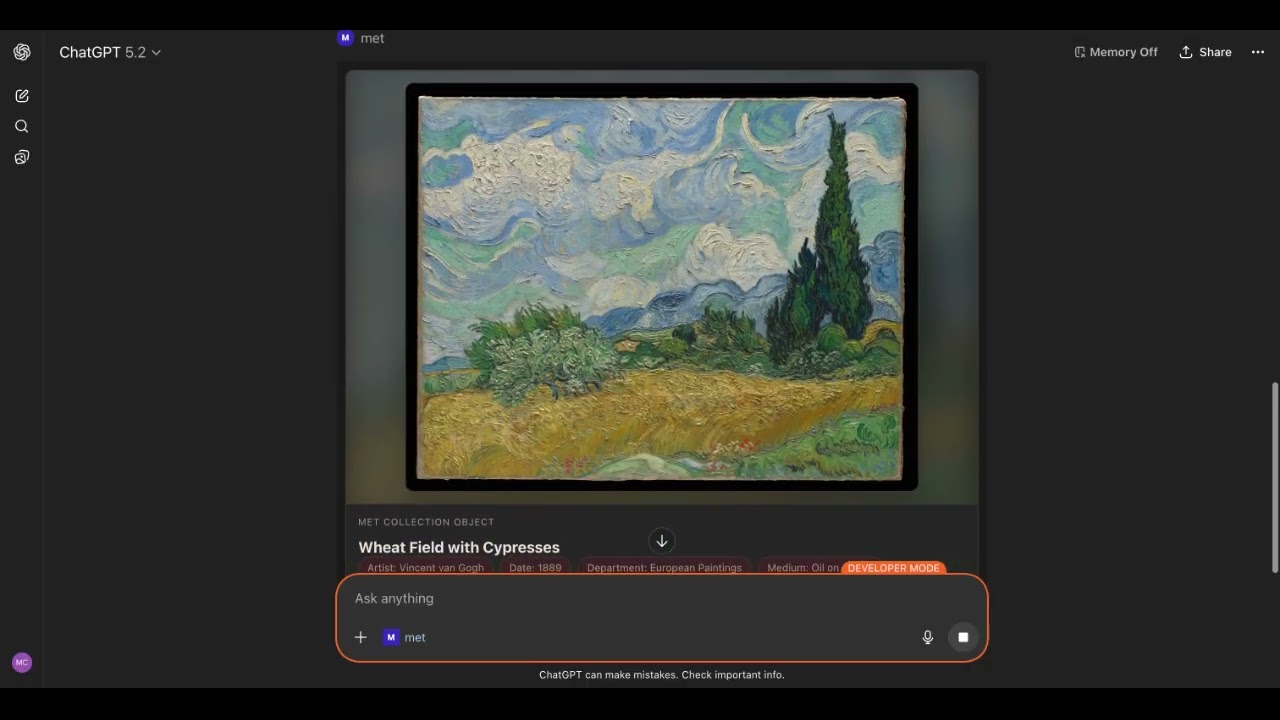
There are now MCP Apps in this MCP Server. There is a UI component for the Open Met Explorer App tool and the Get Museum Object tool.
This server supports two transports:
- Stdio transport (default): Used by MCP desktop clients (Claude Desktop, LibreChat MCP, etc.).
- Streamable HTTP transport: Run with
--httpto expose an MCP endpoint at/mcp.
Run with npx (recommended for end users):
npx -y metmuseum-mcp --httpOr run from a local clone:
pnpm run build
node dist/index.js --http
The server listens on:
http://localhost:3001/mcp
You can control server behavior with environment variables:
| Variable | Default | Description |
|---|---|---|
PORT |
3001 |
HTTP port used by the Streamable HTTP server. |
HOST |
127.0.0.1 |
Network interface the HTTP server binds to. |
ALLOWED_HOSTS |
localhost,127.0.0.1 |
Comma-separated host allowlist for host header validation (example: localhost,127.0.0.1,my-domain.com). |
MET_API_TIMEOUT_MS |
10000 |
Timeout in milliseconds for outbound requests to the Met Collection API. |
Example:
HOST=127.0.0.1 PORT=8080 ALLOWED_HOSTS=localhost,127.0.0.1 npx -y metmuseum-mcp --httpThe following steps allows you to use Met Museum MCP with the web UI of ChatGPT
Settings → Apps → Advanced settings → Developer mode
Additional instructions here
npx -y metmuseum-mcp --httpBy default the server will be listening on http://127.0.0.1:3001/mcp
Sign up and configure ngrok, the free plan works.
ngrok http 3001Take note of the forwarding URL.
...
Forwarding                    https://john-joe-asdf.ngrok-free.dev -> http://localhost:3001
...Click Apps
Click Create Apps
Fill out the form using the URL from step 3 as the MCP Server URL, but add /mcp.
https://john-joe-asdf.ngrok-free.dev/mcp
For Authentication, select 'No Auth'
Tick the checkbox for 'I understand and want to continue'
Then click Create.
In the prompt input field you can use @name-of-server-from-step3 or In the ChatGPT UI, click the '+' button, scroll to '...more', select the newly created Met app, and enter your query.
- Download the
mcpbfile from the Releases - Open it with Claude Desktop or Go to File -> Settings -> Extensions and drag the .mcpb file to the window to install it
Add this to your claude_desktop_config.json:
{
  "mcpServers": {
    "met-museum": {
      "command": "npx",
      "args": [
        "-y",
        "metmuseum-mcp"
      ]
    }
  }
}Add the following in your librechat.yaml
mcpServers:
  metmuseum:
    command: npx
    args:
      - -y
- metmuseum-mcpHere some questions you can ask the AI model when this server in connected:
Can you help me explore the works of Vincent Van Gogh?
Can you help me explore the Met?
Can you show me a few painting from the Asian Art department?
Can you find the painting titled "Corridor in the Asylum"?
Can you find any art that has "cat" in the title or features "cats"?
Contributions are welcome! Please feel free to submit a Pull Request.
This project uses pnpm for local development and CI.
corepack enable
pnpm install
pnpm run build
pnpm run check
For non-interactive shells/CI runners, use CI=true pnpm install --frozen-lockfile.
This MCP server is licensed under the MIT License. This means you are free to use, modify, and distribute the software, subject to the terms and conditions of the MIT License. For more details, please see the LICENSE file in the project repository.
This library is not officially associated with The Metropolitan Museum of Art in New York. It is a third-party implementation of the The Metropolitan Museum of Art Collection API with a MCP Server.