

A multiplayer snake game. Each player controls a snake. Each snake must avoid colliding with itself and other snakes, and consume pellets to grow. A leaderboard keeps track of the lengths of the snakes in game. Upon starting the game, each player enters a name to distinguish themselves from other players. When a snake consumes a pellet, it adds a block of that color to its body. Music and sound effects play as a player navigates its snake around the board, whose borders wrap around and whose center remains the player's snake.

On Windows and Mac:
- Download
server.exe(Windows) orserver(Mac) from the latest release, this will now be called the server executable - Download
client.exe(Windows) orclient(Mac) from the latest release, this will now be called the client executable - Open the server executable. Ignore the warning messages, you can trust us!
- A terminal will pop up, note the IP and port number.

- Open the client executable, also ignore warning messages.
- A terminal will pop up prompting an input for IP, enter the IP found at step 4
- Enter port number found at step 4

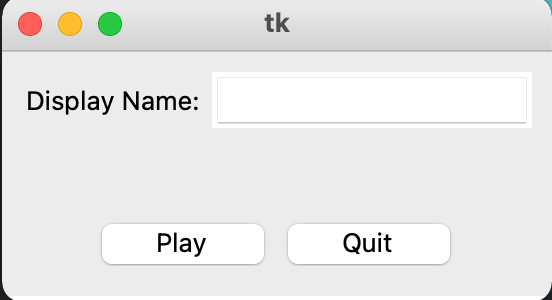
Alternatively, if you do not want to download an executable for Windows or Mac, or if you use Linux,
- Install Python (https://www.python.org/downloads/) (preferably version 3.7 or newer)
- Install Pygame (https://www.pygame.org/wiki/GettingStarted)
- Clone this repo
- Open a terminal
- Navigate to the cloned repo's root directory
- Enter the command
python server.py(orpython3 server.pydepending on your Python version) - Enter the command
python client.py(orpython3 client.pydepending on your Python version) - Follow steps 4-8 from the Windows and Mac instructions above.
You now have a working copy of the game!
When downloading the executable snake-hunt from GitHub, your Mac may give you the error message: “snake-hunt” can't be opened because Apple cannot check it for malicious software.
To run the executable, do the following:
- Click
OKon the error message. - Choose the
Apple menu>System Preferences>Security & Privacy>General. - If the lock at the bottom left is locked , click it to unlock the preference panel. You may need to enter your password.
- Next to the message beginning with
"client"or"server"was blocked, clickAllow Anyway. - Now, in your terminal, cd into your Downloads folder (or wherever you downloaded the executable to) and type the command
./clientand/or./server. - It may tell you
permission denied: ./clientand/or./server. In this case, you must change the permissions of the file by typingchmod 755 server(orchmod 755 client). Now you can type./clientor./serverand it will begin to run. - If you are still having trouble, you may need to follow the instructions for cloning the repository and running the code directly from the terminal.
- Use the Up/Down/Left/Right arrow keys to navigate the snake
- Use your computer's volume controls to turn the sound up or down
Follow this project board to know the latest status of the project: https://github.com/orgs/cis3296f22/projects/97