Write your resume in Markdown, export to PDF — powered by AI via MCP.
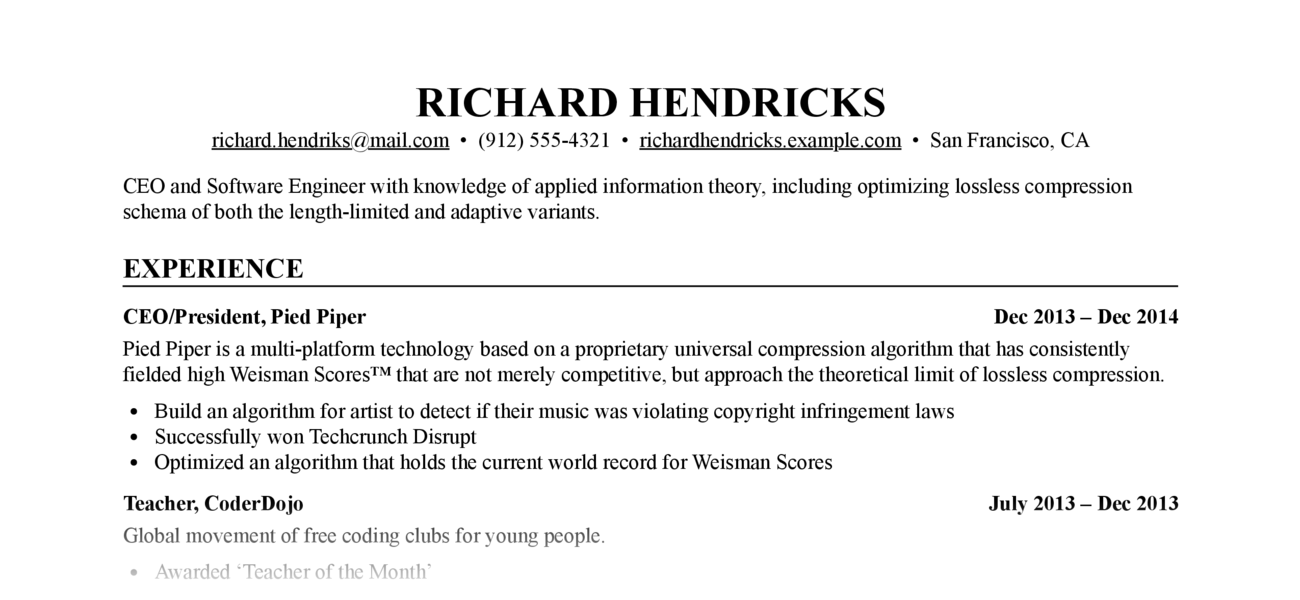
Let Claude write, edit, and format your resume. The MCP server handles Markdown-to-PDF conversion with a built-in stylesheet — no CSS knowledge required.
Requirements: Python ≥ 3.12, Google Chrome or Chromium (for PDF export)
Add to Claude Code with one command:
claude mcp add resume-markdown -- uvx resume-markdown-mcp@latestFor Claude Desktop, add to claude_desktop_config.json:
{
  "mcpServers": {
    "resume-markdown": {
      "command": "uvx",
      "args": ["resume-markdown-mcp@latest"]
    }
  }
}# Install globally with uv
uv tool install resume-markdown-mcp
# Or with pip
pip install resume-markdown-mcp| Type | Name | Description |
|---|---|---|
| Tool | export_resume_pdf |
Convert a Markdown resume to PDF. Accepts a file path or raw Markdown text. CSS is applied automatically. |
| Resource | resume://template |
The built-in Markdown resume template. AI reads this to understand the required format. |
| Resource | resume://style |
The built-in CSS stylesheet. AI reads this when you want to customise the appearance. |
- "Help me write a resume for a software engineer role and export it as a PDF to my Desktop"
- "Here's my resume at ~/resume.md — export it to PDF"
- "My resume.md doesn't follow the right format, fix it and export to /tmp/resume.pdf"
- "Make the font size smaller, save the custom CSS to ~/resume.css, and re-export"
The PDF renderer depends on these Markdown conventions:
# Full Name

- [email protected]
- Phone number
- City, Country

One-line summary (optional)

## Experience

### <span>Job Title, Company</span> <span>2022 – 2025</span>

- Achievement one
- Achievement two

## Education

### <span>Degree, University</span> <span>2018 – 2022</span>

## Skills

- Skill category: item, item, item
The <span> tags inside ### headings are required — they enable the left/right flexbox layout for title and date. AI handles this automatically when writing from scratch; if your existing file lacks them, ask Claude to reformat it before exporting.
# Create template files (resume.md + resume.css) in the current directory
resume-markdown-mcp init

# Build HTML and PDF from resume.md
resume-markdown-mcp build

# Options
resume-markdown-mcp build --no-pdf          # HTML only
resume-markdown-mcp build --no-html         # PDF only
resume-markdown-mcp build myresume.md       # Custom input file
resume-markdown-mcp build --chrome-path=... # Specify Chrome path
If a resume.css file exists alongside the input file, it is used automatically; otherwise the built-in stylesheet is applied.
You can also run without installing via uvx:
uvx resume-markdown-mcp@latest init
uvx resume-markdown-mcp@latest build resume.mdFor iterative CSS editing, ask Claude to save the stylesheet to a local file:
"Increase the font size and save the custom CSS to ~/resume.css, then export"
Future exports can reference the same file without re-sending the CSS:
"Re-export my resume using ~/resume.css"
You can also edit ~/resume.css directly in any text editor between exports.
- AI calls
export_resume_pdfwith Markdown content or a file path - The server converts Markdown to HTML using python-markdown, with the built-in CSS inlined
- Headless Chrome renders the HTML and prints it to PDF
- Chrome exits as soon as the PDF is written; the tool returns the output path
MIT