[Media size setting] Media fit #2016


Description

PR SUMMARY
Problem: Product images expanding below the viewport, resulting in undesirable product image representation for our merchants.
Solution: We will be adding "media fit" setting as an addition to the new media settings for product information template. Issue: 2004
UPDATES
- New setting: Add "Media fit" setting under media section with two options for the merchant to pick from: Original, fill.
- Default setting: Media fit: Original
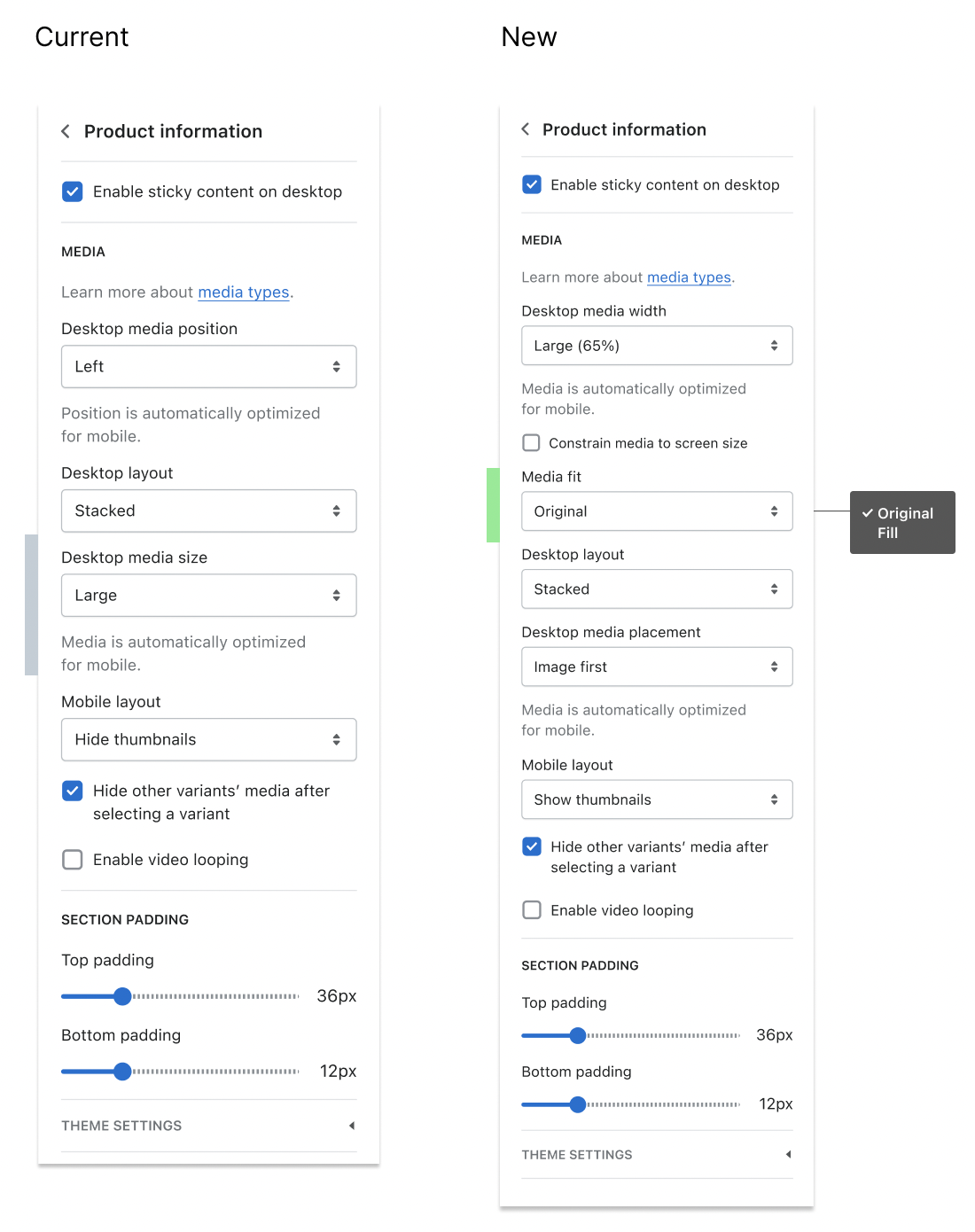
- Border logic per media fit setting: When the media is set to “fill”, the image should cover the full image column width. Container size is determined by the column.

- Video thumbnails: There are two ways that the video thumbnails can be pulled. a) if the merchant uploads an image from the admin. If not, the thumbnail will be pulled from the original source. (eg. Youtube) In both cases, if the merchant chooses "fill" from the media fit setting, the video thumbnail image should cover the full image column width. (this will be not-interacted state, once the buyer interacts with the video (clicks play) – the video goes back to its original aspect ratio)

- 3D models: Similar to the video thumbnails, the 3D model thumbnails can be uploaded by the merchant or if there is not thumbnail, the thumbnail is automatically uploaded in square aspect ratio. If the merchant uploads a video thumbnail in a portrait aspect ratio, the logic should work the same for media fit: fill – the image should cover the full image column width. (this will be not-interacted state, once the buyer interacts with the 3D model – the model goes back to square aspect ratio)

- Stacked layout x media setting: fill: Always scale up shorter images to fill the space created by the tallest image in the same row. On mobile this would mean the tallest image in the whole set.
DESIGN DOCUMENTS:
Metadata
Metadata
Assignees
Labels
No labels