Not all errors are the same — and not every issue means something is broken.
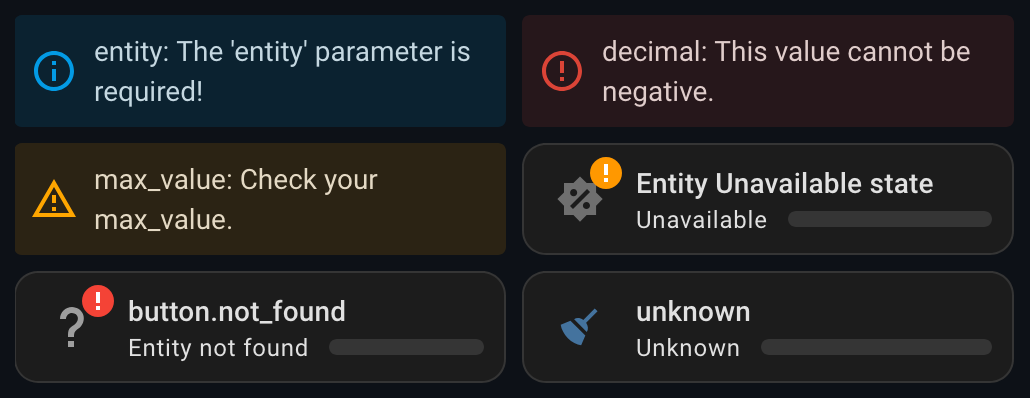
This card is designed to gracefully handle common errors in your Lovelace configuration or entity state. These are usually minor and expected, and the card will notify you directly in the UI when they occur (for example, a missing entity or invalid value).
However, you might encounter a real bug — something unexpected that breaks functionality and requires further investigation. That’s where troubleshooting comes in.
This card includes error handling to prevent visual issues and ensure the UI stays clean and stable. We handle two main categories of errors in the card:
-
Configuration Errors These occur when the card is incorrectly set up in the Lovelace config. Examples:
- Missing entity ID
- Invalid or unsupported attributes
- Incorrect min/max values
-
Runtime Errors (Entity State Issues) These happen while the card is running and are related to the entity’s current state. Examples:
- Entity is not found, unavailable or offline
Show the screenshot (click to expand)

Over time, some configuration options have been deprecated in favor of more flexible or clearer alternatives. While the card tries to maintain backward compatibility, these options may stop working in future releases.
In the development of this card, we strive to avoid breaking changes as much as possible. When such changes are unavoidable, we do our best to support and guide users through the transition.
In this context, we have two types of deprecated options:
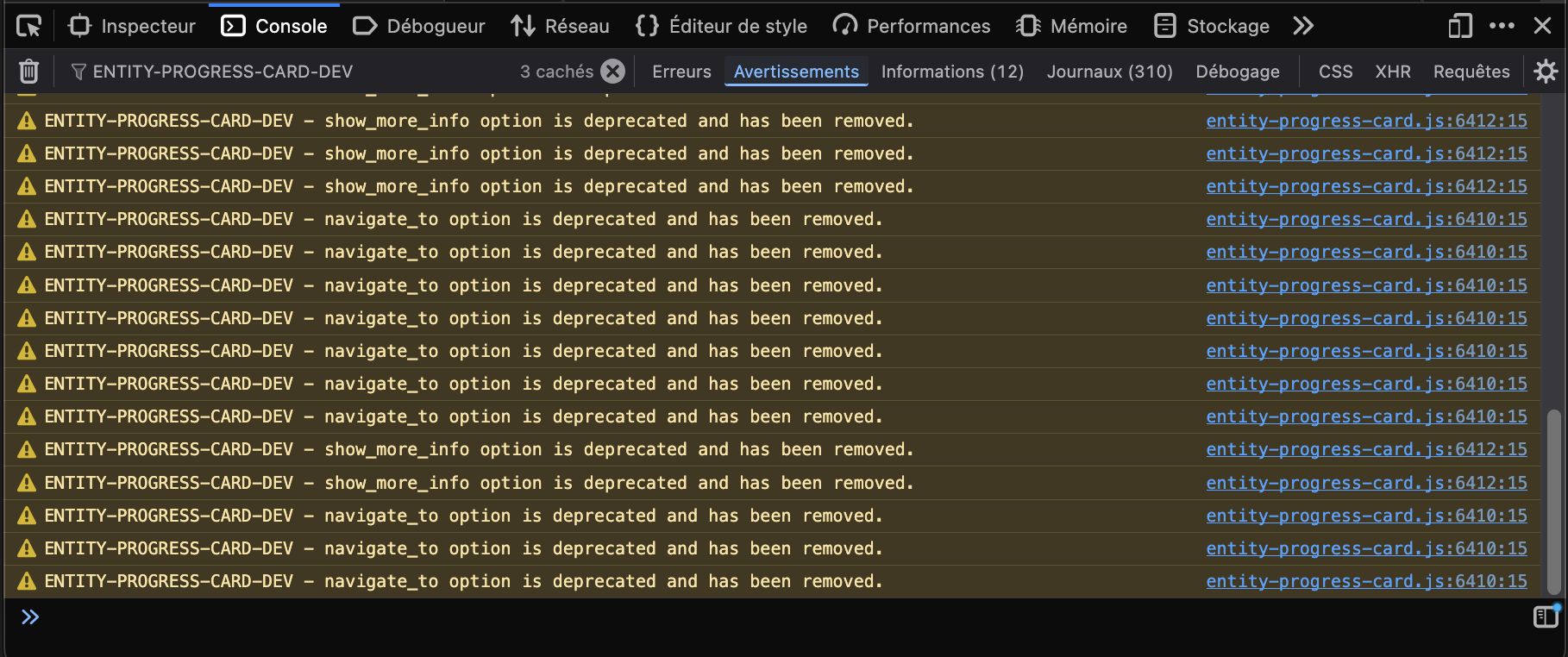
- Removed: These were removed to prevent duplication and potential conflicts with the new system. It was important to remove them for stability reasons.
- Deprecated but still active options: These options may have been used in many different cards, and migrating them requires reviewing the configurations of all those cards. Therefore, we allow time before disabling them, provide a system to detect if you are affected, and will remove them later.
| Option / Value | Status | Replacement / Recommended Action | Since version | Current Behavior |
|---|---|---|---|---|
navigate_to |
Removed | Use tap_action: navigate |
v1.2.0 |
Ignored, console warning |
show_more_info |
Removed | Use tap_action: more-info |
v1.2.0 |
Ignored, console warning |
theme: 'battery' |
Deprecated | Use optimal_when_xxx |
v1.1.8-11 |
Still works, shows warning |
theme: 'cpu' |
Deprecated | Same as above | v1.1.8-11 |
Still works, shows warning |
theme: 'memory' |
Deprecated | Same as above | v1.1.8-11 |
Still works, shows warning |
Show the screenshot (click to expand)
Despite all efforts to provide a stable and bug-free card, you might still encounter an issue.
Important
Don't panic! And above all, do not delete your dashboards!
This card does not alter your existing configuration. It only displays entities — nothing is modified, removed, or broken in your actual setup.
-
Card not loading?
➡️ Ensure the resource is properly added to Lovelace. -
HACS not detecting the card?
➡️ Try clearing your browser cache or restarting Home Assistant. -
Still not working?
➡️ Open your browser’s JavaScript console to check for any errors.How to open the JavaScript console (click to expand)
- Method 1: Keyboard Shortcut
- Press
F12orCtrl+Shift+K(Mac:⌘+⌥+K)
- Press
- Method 2: Menu Navigation
- Click the
≡menu button (top-right) - Go to Web Developer → Web Console
- Click the
- Method 1: Keyboard Shortcut
- Press
F12orCtrl+Shift+J(Mac:⌘+⌥+J)
- Press
- Method 2: Menu Navigation
- Click the
⋮three-dot menu (top-right) - Go to More tools ➡️ Developer tools
- Select the Console tab
- Click the
- Method 1: Keyboard Shortcut
- Press Mac:
⌘+⌥+C
- Press Mac:
- Method 2: Menu Navigation
Enable the Develop menu first (if not already enabled):- Go to Safari ➡️ Preferences ➡️ Advanced
- Check Show Develop menu in menu bar
- Click Develop ➡️ Show JavaScript Console
- Method 1: Keyboard Shortcut
PressCtrl+Shift+I(Mac:⌘+⌥+I) - Method 2: Menu Navigation
Click the O menu button (top-left)
Go to Developer ➡️ Developer tools
Select the Console tab
- Method 1: Keyboard Shortcut
PressF12orCtrl+Shift+I(Mac:⌘+⌥+I) - Method 2: Menu Navigation
Click the⋯three-dot menu (top-right)
Go to More tools ➡️ Developer tools
Select the Console tab
- Method 1: Keyboard Shortcut
- Home Assistant version
- Browser used
- YAML configuration snippets (if relevant)
- Any visible error messages (from the console or logs)
You don’t need to be a developer to report an issue! Whether you're a beginner or an advanced user, your feedback is valuable!
- Before creating a new issue, please first check existing issues to see if the problem has already been reported.
- If not, feel free to submit a new issues with all the relevant information.
Note
When opening an issue, try to include as much information as possible.
The more context you provide, the faster and more accurately I can help - we’ll troubleshoot it together!
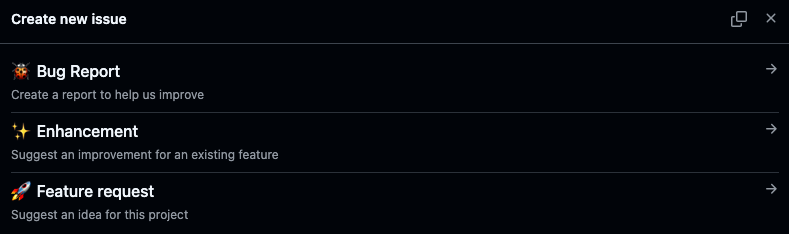
To help you out, I’ve set up a simple system that asks you the right questions and guides you through the process of creating a useful issue.
Show the screenshot (click to expand)
If you recently updated the card and the issue started afterward, you can:
- roll back to the previous working version using HACS;
- check if a patch or fix is already available;
- wait for an update — your dashboards will remain intact.
This troubleshooting guide is inspired by open source best practices.