The Console is QwenPaw's built-in web interface. After running qwenpaw app,
open http://127.0.0.1:8088/ in your browser to enter the Console.
In the Console, you can:
- Chat with QwenPaw in real time
- Enable/disable/configure messaging channels
- View and manage all chat sessions
- Manage scheduled jobs and heartbeat
- Edit QwenPaw's persona and behavior files
- Enable/import skills to extend QwenPaw's capabilities
- Toggle tools on or off
- Manage MCP clients
- Modify runtime configuration
- Manage multiple agents
- Configure LLM providers and select models
- Manage environment variables required by tools
- Manage security options for tools and skills
- View LLM token usage statistics
- Configure how voice messages are handled
The sidebar on the left lists all features in four groups — Chat, Control, Workspace, and Settings. Click an item to switch pages. The sections below walk through each feature in order.
Not seeing the Console? Make sure the frontend has been built. See CLI.
Sidebar: Chat → Chat
This is where you talk to QwenPaw. It is the default page when the Console opens.
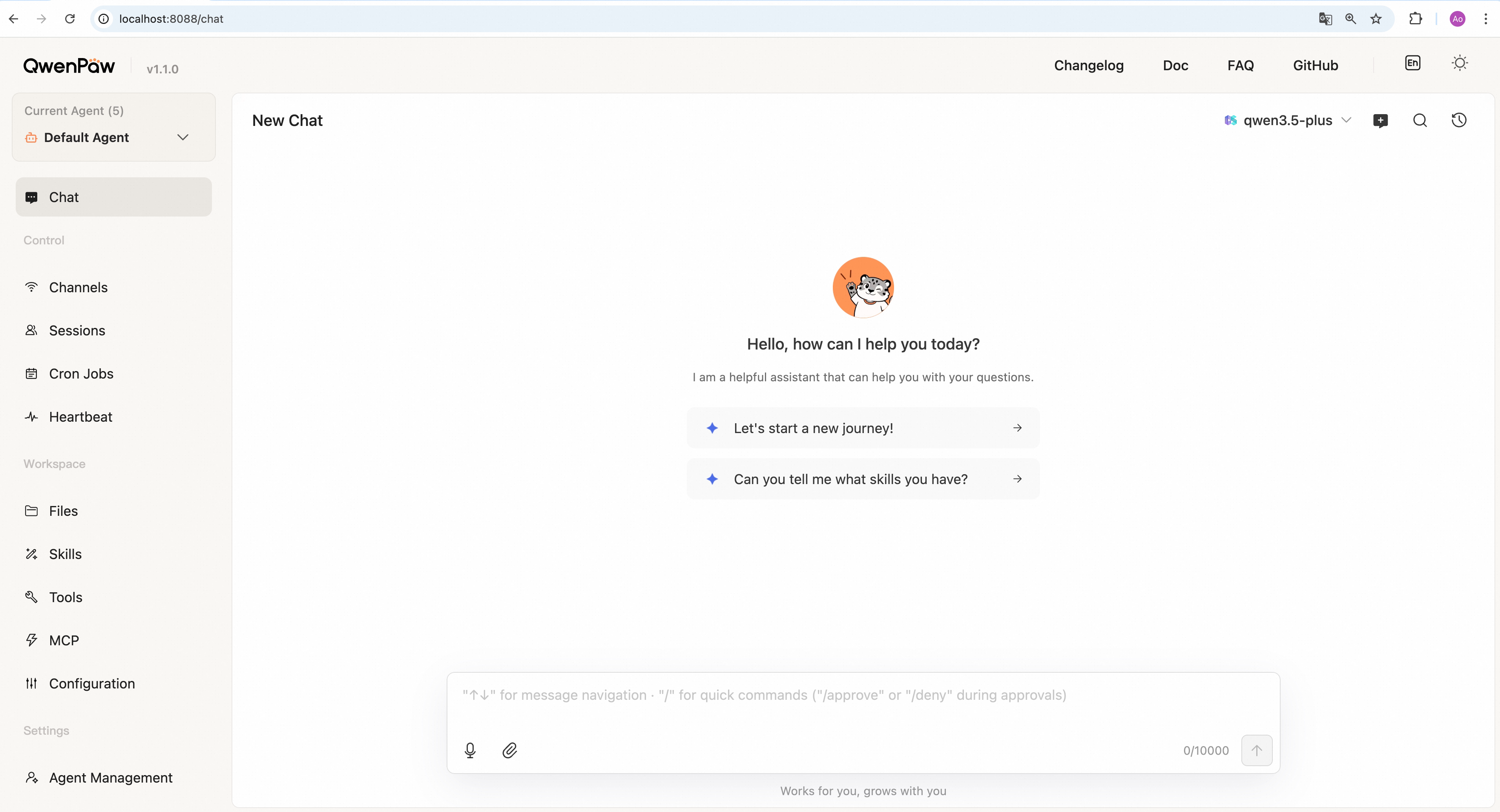
Choose a model: Use the control at the top-right of the chat page to pick the model for the current agent.
Send a message: Type in the input box at the bottom, then press Enter or click the send button (↑). QwenPaw replies in real time.
Voice input: The composer supports voice input (browser and OS microphone permission required). Behavior matches Voice transcription settings (e.g. transcribe first, then send text to the model).
Attachments: You can attach files such as documents, images, and audio/video (follow on-screen limits; per-file size caps apply).
Create a new session: Click the New Chat button at the top-right of the chat page to start a new conversation. Each session keeps separate history.
Switch sessions: Click the Chat history button at the top-right to view and switch between past conversations.
Delete a session: In the chat history panel, click the trash button on the right of a session row to delete it.
Sidebar: Control → Channels
Manage messaging channels (Console, DingTalk, Feishu, Discord, QQ, WeChat, iMessage, etc.): enable/disable and credentials.
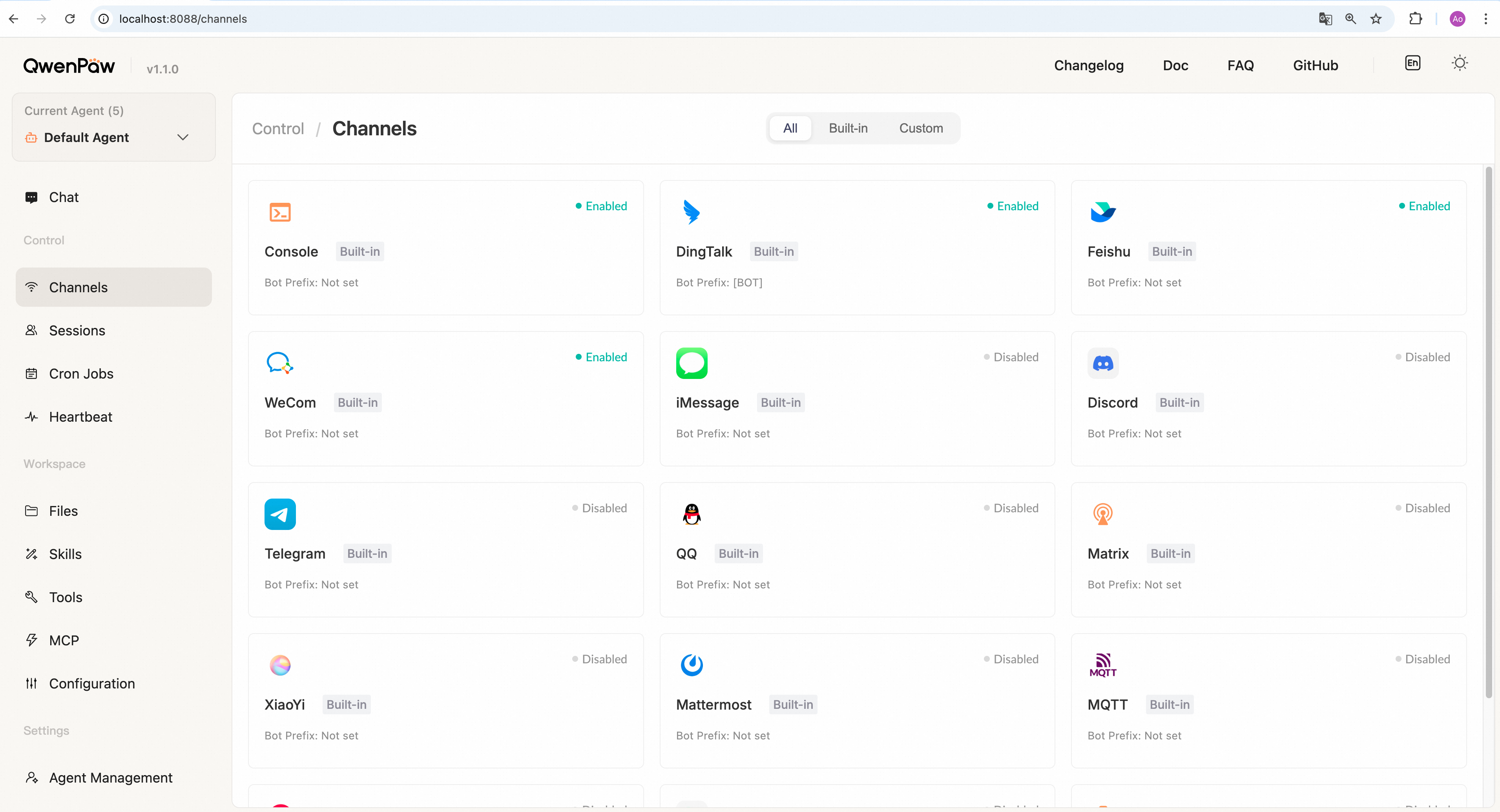
Enable a channel:
- Click the channel card you want to configure.
- A settings panel slides out on the right. Turn on Enable.
- Fill in required credentials — each channel differs; see Channels.
- Click Save. Changes take effect in seconds, no restart required.
Disable a channel: Open the same panel, turn off Enable, then click Save.
For credential setup details, see Channels.
Sidebar: Control → Sessions
View, filter, and clean up chat sessions across all channels.
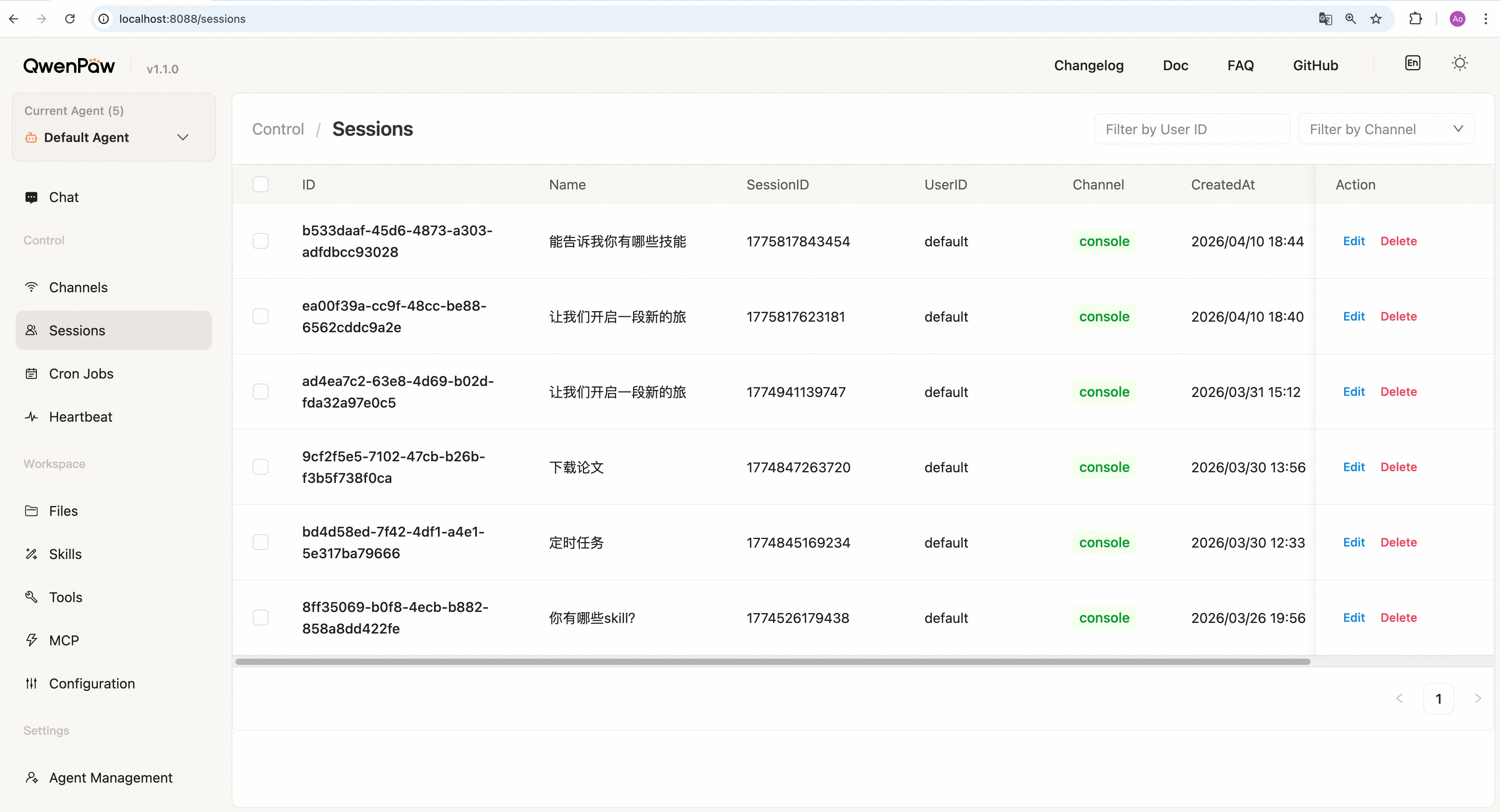
Find sessions: Use the search box to filter by user, or use the dropdown to filter by channel. The table updates immediately.
Rename a session: Click Edit on a row → change the name → click Save.
Delete one session: Click Delete on a row → confirm.
Batch delete: Select rows → click Batch Delete → confirm.
Sidebar: Control → Cron Jobs
Create and manage scheduled jobs that QwenPaw runs automatically by time.
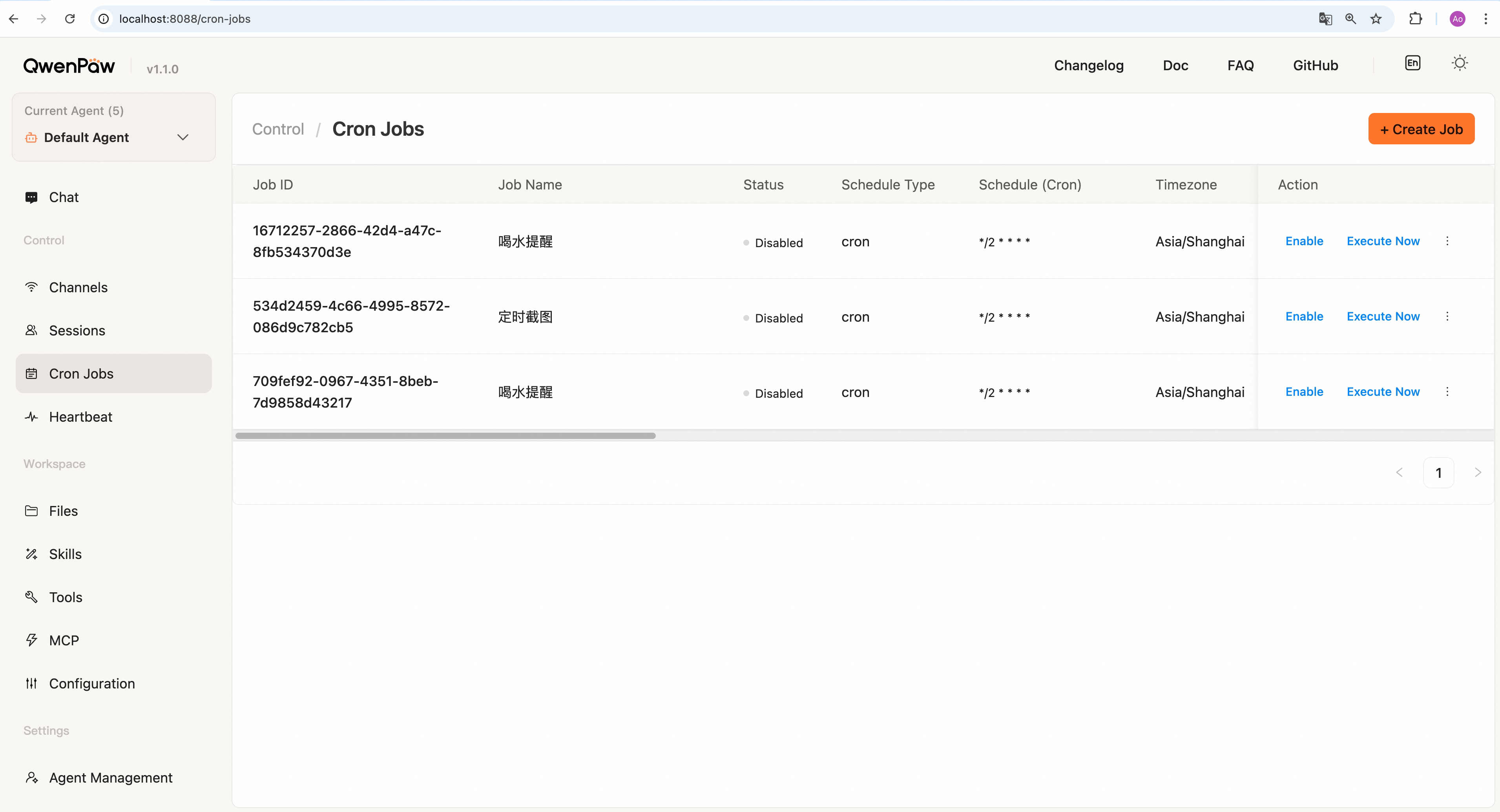
Create a new job:
If the cron job fails to be created, please refer to the Troubleshooting Scheduled (Cron) Tasks section in the FAQ to identify the cause.
The simplest way to create a cron job is to chat directly with QwenPaw and let it handle the creation for you. For example, if you want to receive a reminder to drink water on DingTalk, simply message QwenPaw on DingTalk: "Help me create a cron job to remind me to drink water every 5 minutes." Once created, you can view the new task on the Cron Jobs page in the console.
Alternatively, you can create tasks directly via the Console interface:
- Click + Create Job.
- Fill in each section:
- Basic info — Job ID (e.g.
job-001), display name (e.g. "Daily summary"), and enable the job. - Schedule — Pick a schedule; if presets are not enough, enter a cron
expression (five fields, e.g.
0 9 * * *= 9:00 daily). Timezone defaults to the current agent's user timezone; you can change it here. - Task type & content — Text: send fixed text from Message content.
Agent: fill Request content; on each run QwenPaw receives the text
from
content.textas the request. - Delivery — Target channel (Console, DingTalk, etc.), target user, target session id, and mode (Stream = token stream, Final = one complete reply).
- Advanced — Optional: max concurrency, timeout, misfire grace time.
- Basic info — Job ID (e.g.
- Click Save.
Enable/disable a job: Toggle the switch in the row.
Edit a job: Disable the job first, click Edit → change fields → Save.
Run once immediately: Click Execute Now → confirm.
Delete a job: Disable the job first, click Delete → confirm.
Sidebar: Control → Heartbeat
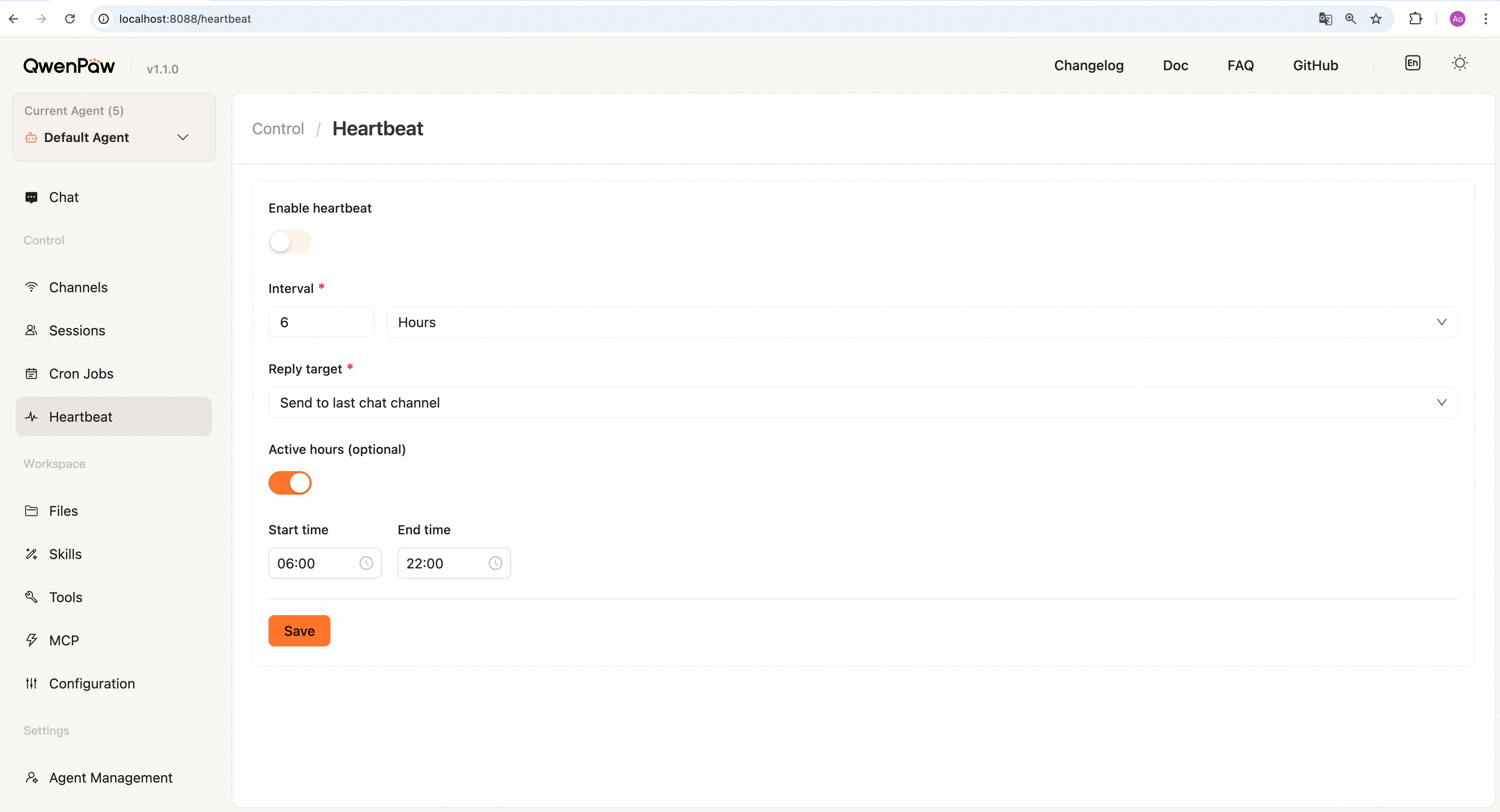
Configure periodic "self-check" for the currently selected agent: on each
tick, send the contents of HEARTBEAT.md as a user message to QwenPaw, and
optionally deliver the reply to a chosen target.
Common options:
- Enable — Must be on for the schedule to run.
- Interval — Number + unit (minutes / hours).
- Delivery target —
mainruns in the main session only;lastcan send results to the channel from your last user conversation. - Active hours (optional) — Only fire within a daily window to avoid night noise.
Click Save to apply. See Heartbeat for wording and semantics.
Sidebar: Workspace → Files
Edit files that define QwenPaw's persona and behavior — SOUL.md, AGENTS.md,
HEARTBEAT.md, etc. — directly in the browser.
Multi-agent: Starting from v0.1.0, QwenPaw supports multi-agent mode. You can run multiple independent agents in one QwenPaw instance, each with its own workspace, configuration, memory, and history. Agents can collaborate. Use the switcher at the top of the Console to change the active agent. See Multi-Agent.
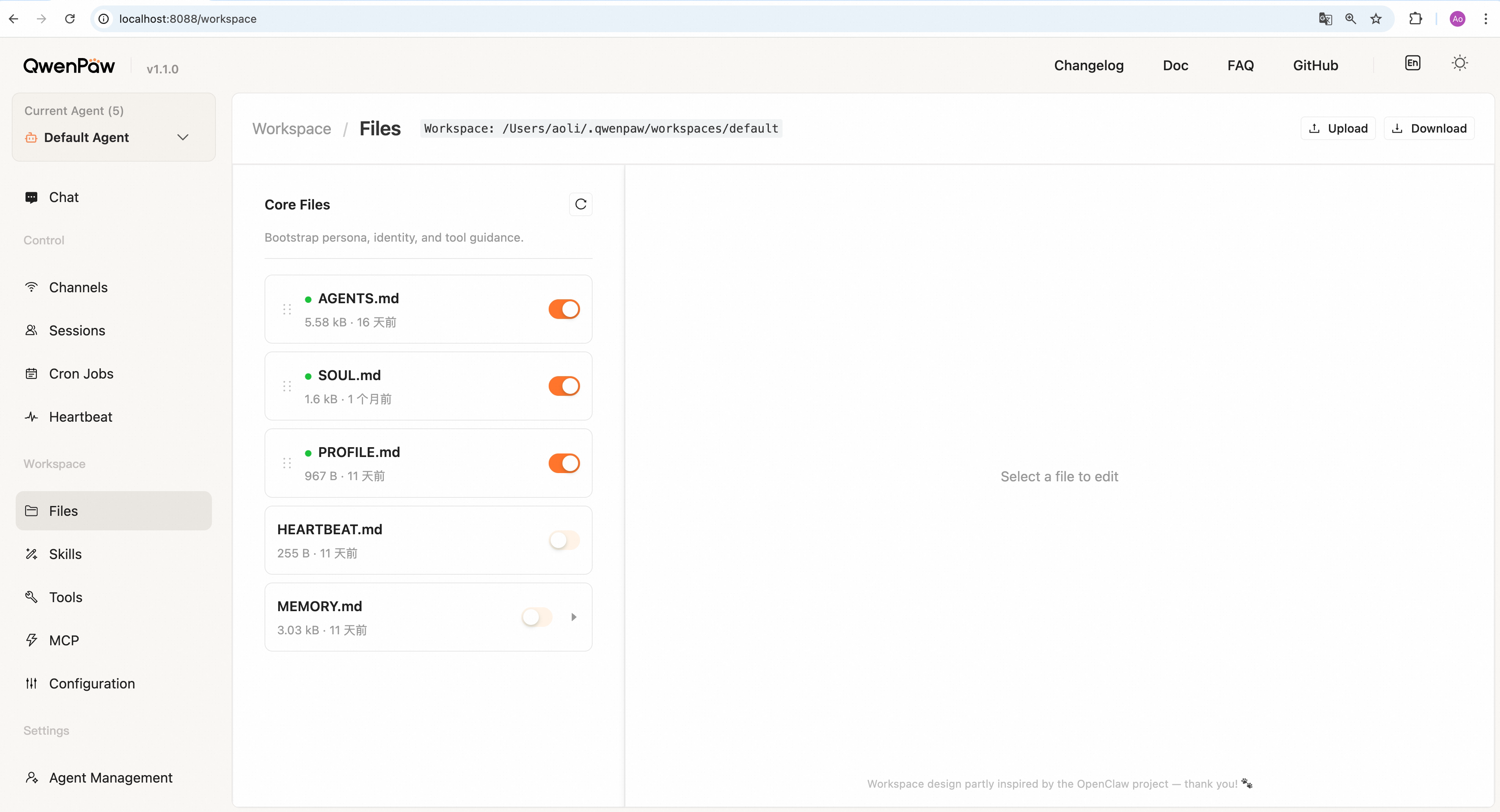
Edit files:
- Click a file in the list (e.g.
SOUL.md). - The editor shows file content. Turn off preview if needed, then edit.
- Click Save to apply, or Reset to discard and reload.
View daily memory:
If MEMORY.md exists, click the ▶ arrow to expand date-based entries. Click a
date to view or edit that day's memory.
Download workspace:
Click Download to export the entire workspace as a .zip to your machine.
Upload/restore workspace:
Click Upload → choose a .zip (max 100 MB). Existing workspace files will be
replaced. Useful for migration and backup restore.
Sidebar: Workspace → Skills
Manage skills that extend QwenPaw (e.g. read PDF, create Word, fetch news). More detail: Skills.
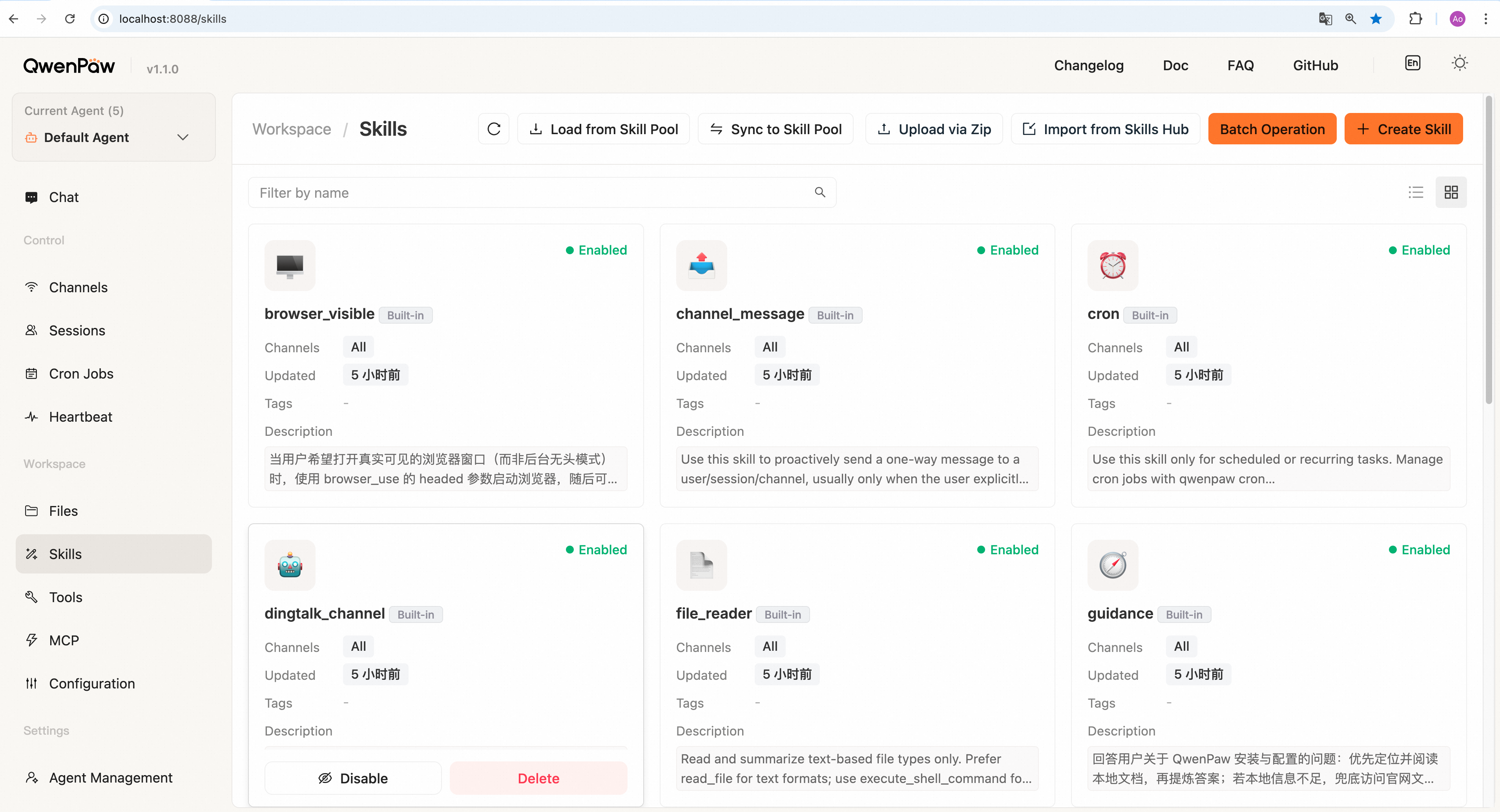
Enable a skill: Click Enable at the bottom of a skill card. It takes effect immediately.
Disable a skill: Click Disable. It also takes effect immediately.
View skill details: Click a skill card for the full description.
Edit a skill: Click a skill card → turn off content preview → edit → Save.
Create a custom skill:
- Click Create Skill.
- Enter a skill name (e.g.
weather_query) and skill content in Markdown (must includenameanddescription). - Click Create; the new skill appears in the list.
Load from skill pool:
- Click Load from skill pool.
- In the dialog, pick skills to add to the current agent.
- Click Confirm.
Sync to skill pool:
- Click Sync to skill pool.
- Select skills to push to the pool.
- Click Confirm.
Upload a skill:
- Click Upload via zip.
- Choose a skill zip file.
- Click Open; on success the skill appears in the list.
Import from Skills Hub:
- Click Import from Skills Hub at the top.
- Enter the skill URL, then import.
- Wait for completion; the skill appears enabled in the list.
Delete a skill: Click Delete on the card and confirm. If the skill is enabled, it is automatically disabled first.
Sidebar: Workspace → Tools
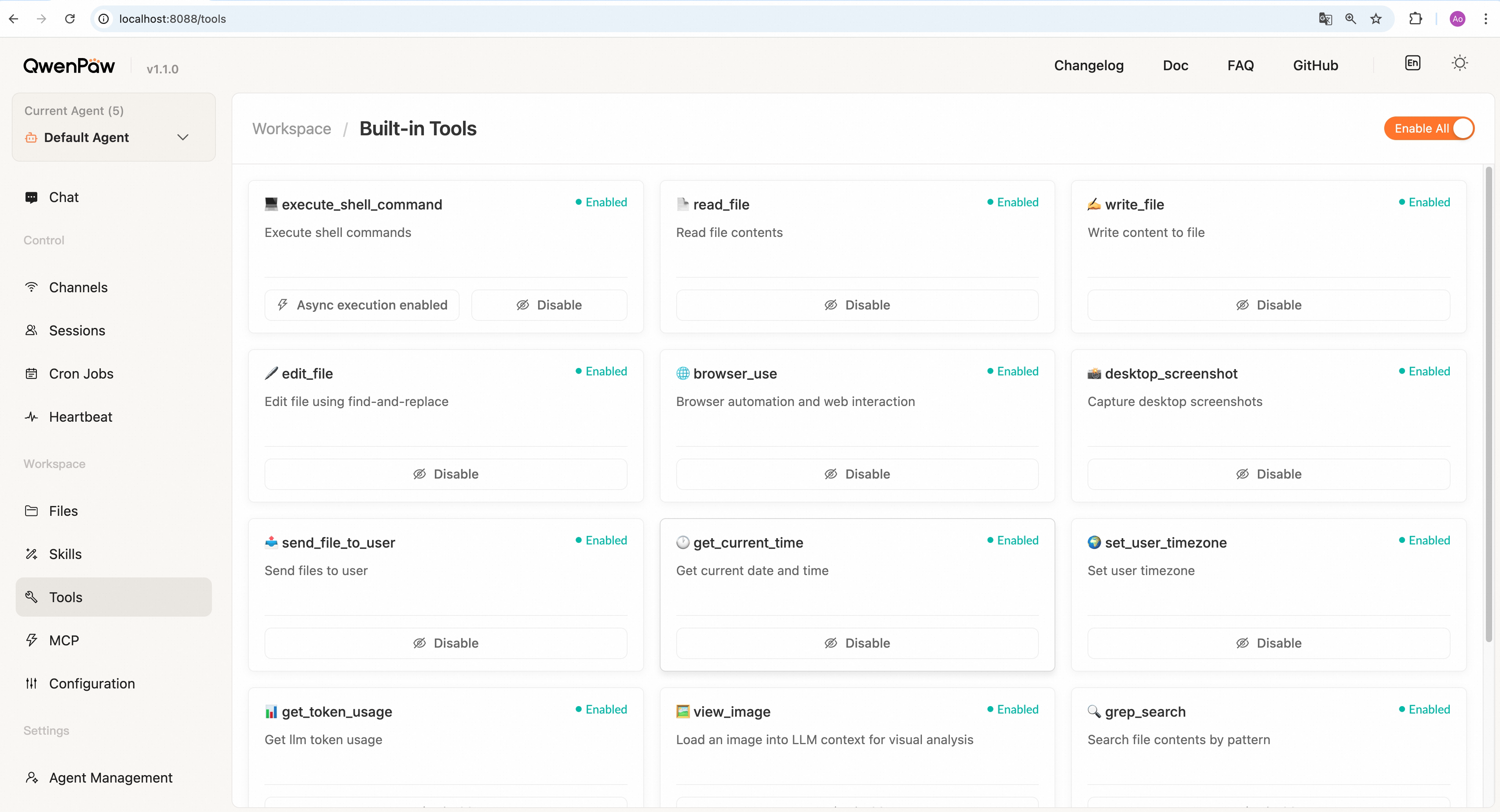
Toggle built-in tools by name (read files, run commands, browser, etc.). When off, this agent cannot call that tool in chat.
Use Enable all / Disable all at the top for batch changes. Changes apply to the current agent immediately.
Sidebar: Workspace → MCP
Enable/disable/delete MCP clients here, or create new ones.
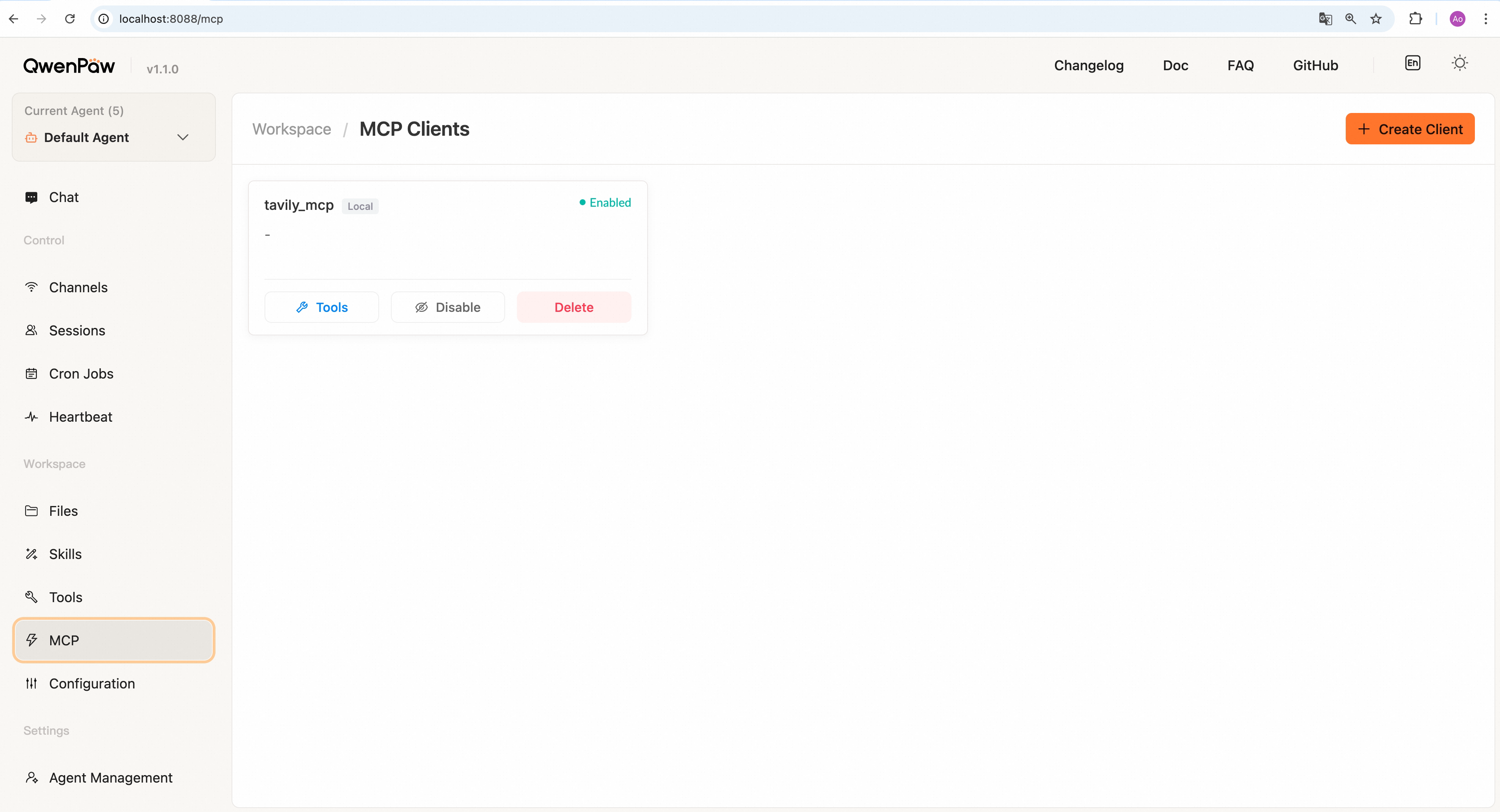
Create a client Click Create Client in the top-right, fill in required fields, then Create. The new client appears in the list.
Sidebar: Workspace → Configuration
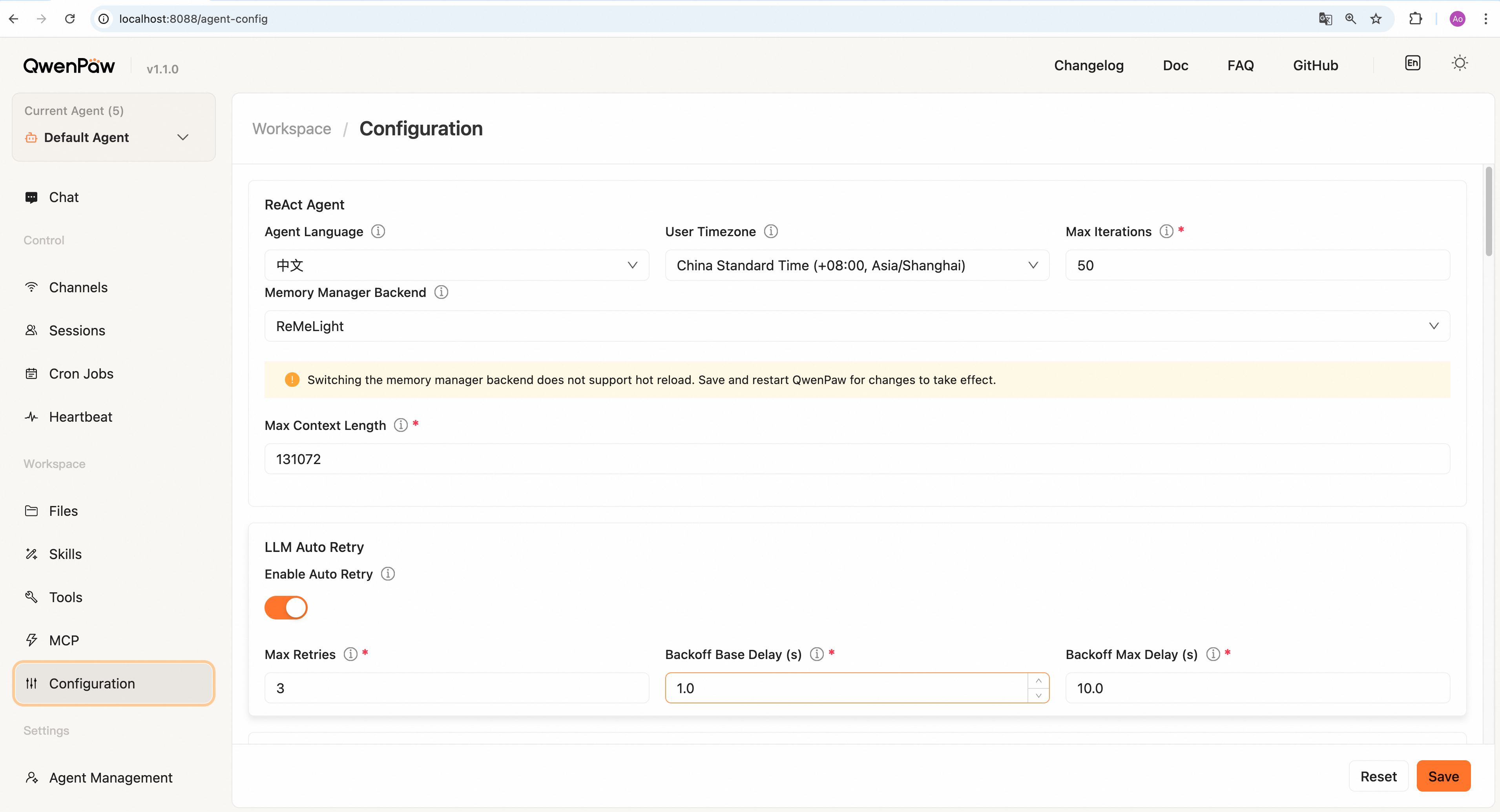
This page configures runtime parameters for the current agent, grouped in cards. Click Save at the bottom (Reset reloads from the server).
- ReAct Agent — UI language, user timezone, max iterations, max context length, etc.
- LLM auto-retry — Max retries, etc.
- LLM concurrency — Max concurrent requests, etc.
- Context management — Max input length, etc.
- Context compaction — Compaction threshold ratio, etc.
- Tool result compaction — Recent tool result window, etc.
- Memory summarization — Max auto-search results, etc.
- Embedding model — Whether to enable embedding cache, etc.
For mechanics, see Context and Config & working directory.
Sidebar: Settings → Agent management

Create, edit, enable/disable, or delete agents. The Description field is used when multiple agents collaborate — write a clear role.
Current agent at the top-left of the Console selects which agent you operate on; this page edits each agent's metadata (name, description, custom workspace path, etc.). See Multi-Agent.
Sidebar: Settings → Models
Configure LLM providers and select the default model for agents. See Models for details on provider and model configuration.
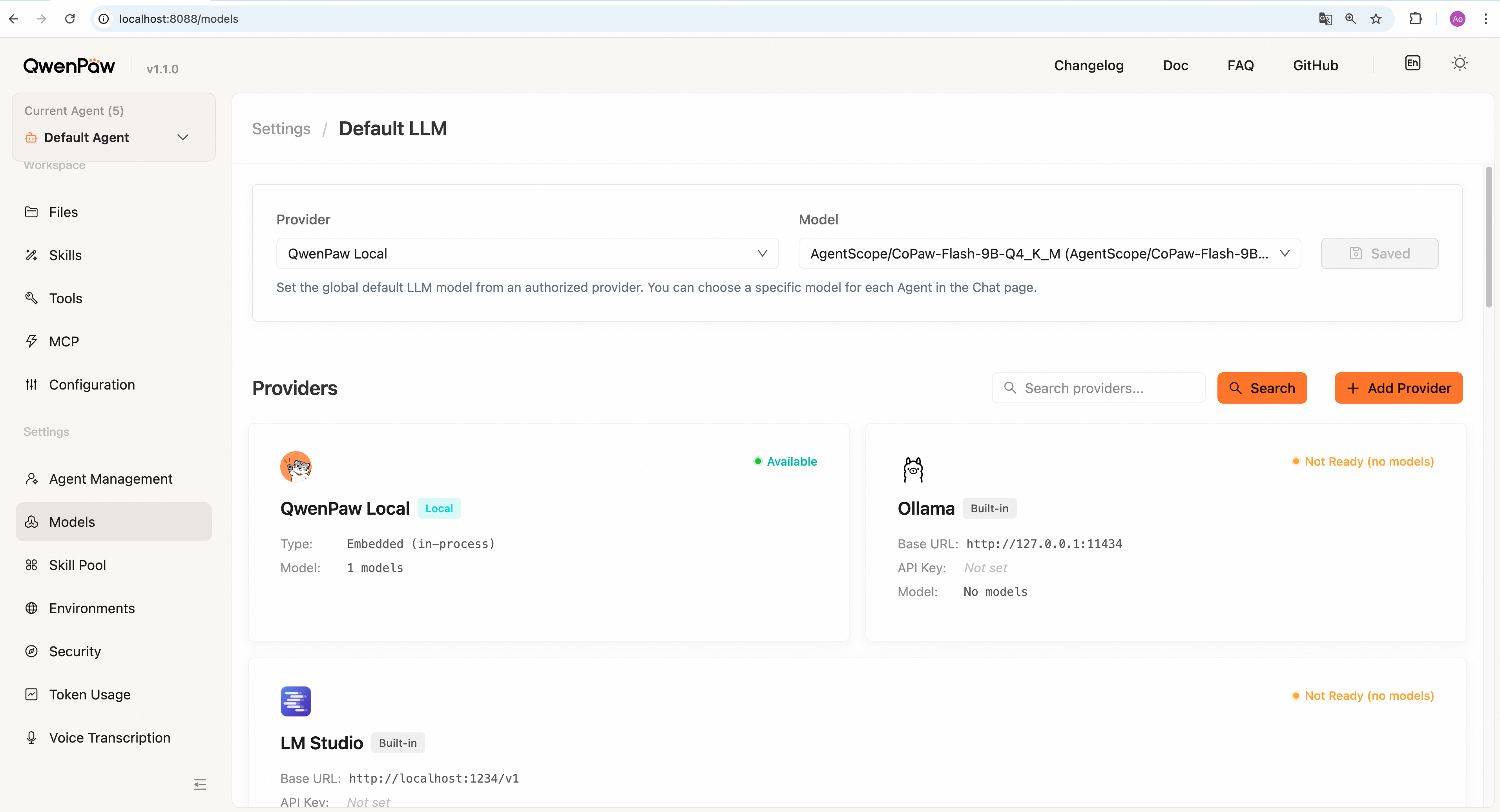
On this page you can:
- Configure Cloud Providers (ModelScope, DashScope, OpenAI, Anthropic, etc.)
- Configure Local Providers (llama.cpp, Ollama, LM Studio)
- Add Custom Providers by filling in API details
- Select the default model for agents
Sidebar: Settings → Skill pool
Global skill management. More detail: Skills.
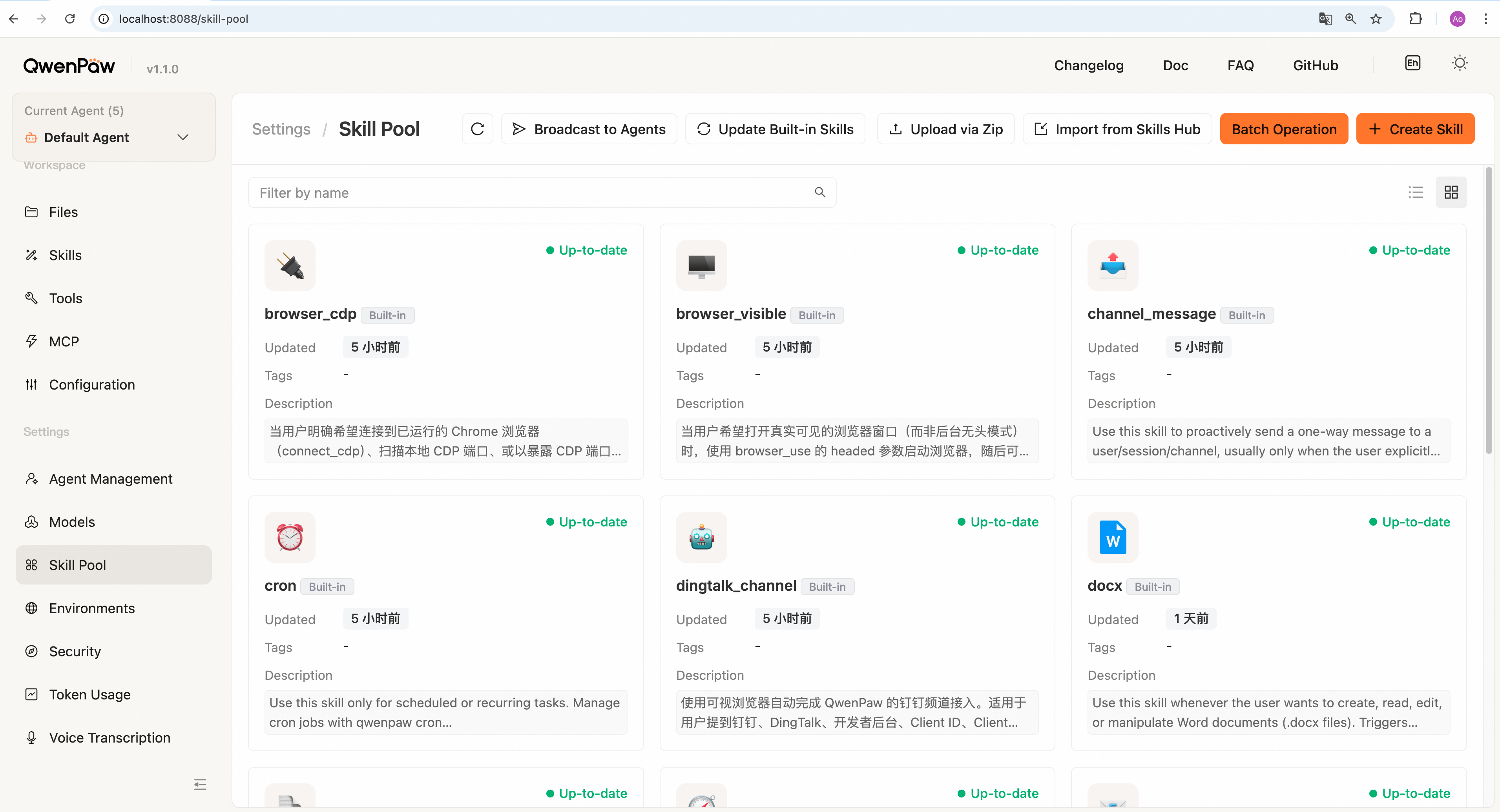
On this page you can:
- Broadcast skills to specific agents
- Update built-in skills to the latest version
- Upload skills via zip
- Import skills from Skills Hub
- Create skills
- Edit skills
- Delete skills
Sidebar: Settings → Environments
Manage runtime environment variables needed by QwenPaw tools and skills (e.g.
TAVILY_API_KEY).
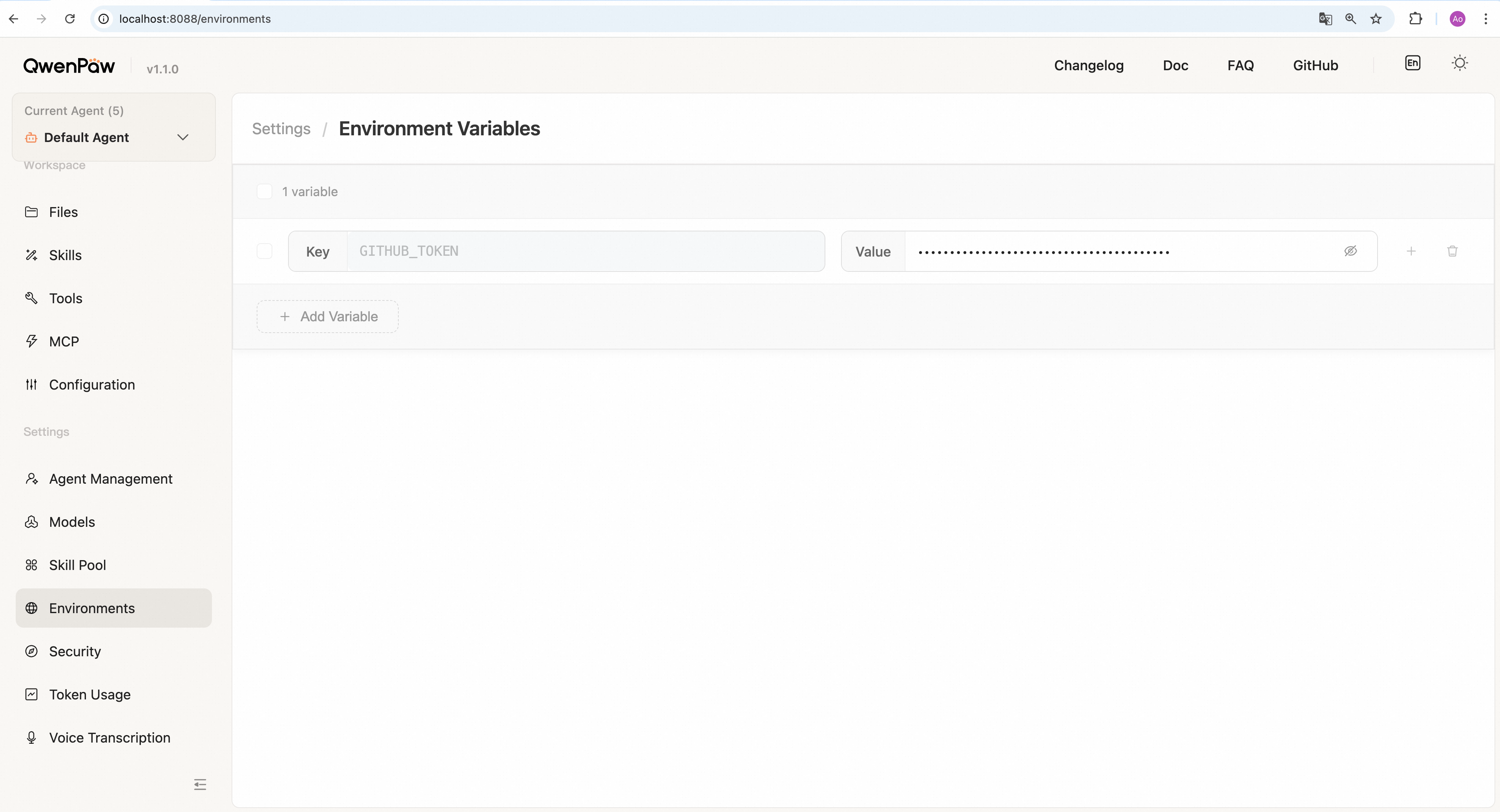
Add a variable:
- Click + Add Variable at the bottom.
- Enter the variable name (e.g.
TAVILY_API_KEY) and value. - Click Save.
Edit a variable: Change the Value field, then click Save. (Variable names are read-only after save; to rename, delete and recreate.)
Delete a variable: Click the 🗑 icon on a row → confirm.
Batch delete: Select rows → click Delete in the toolbar → confirm.
Note: Variable validity is your responsibility. QwenPaw only stores and loads values.
Sidebar: Settings → Security
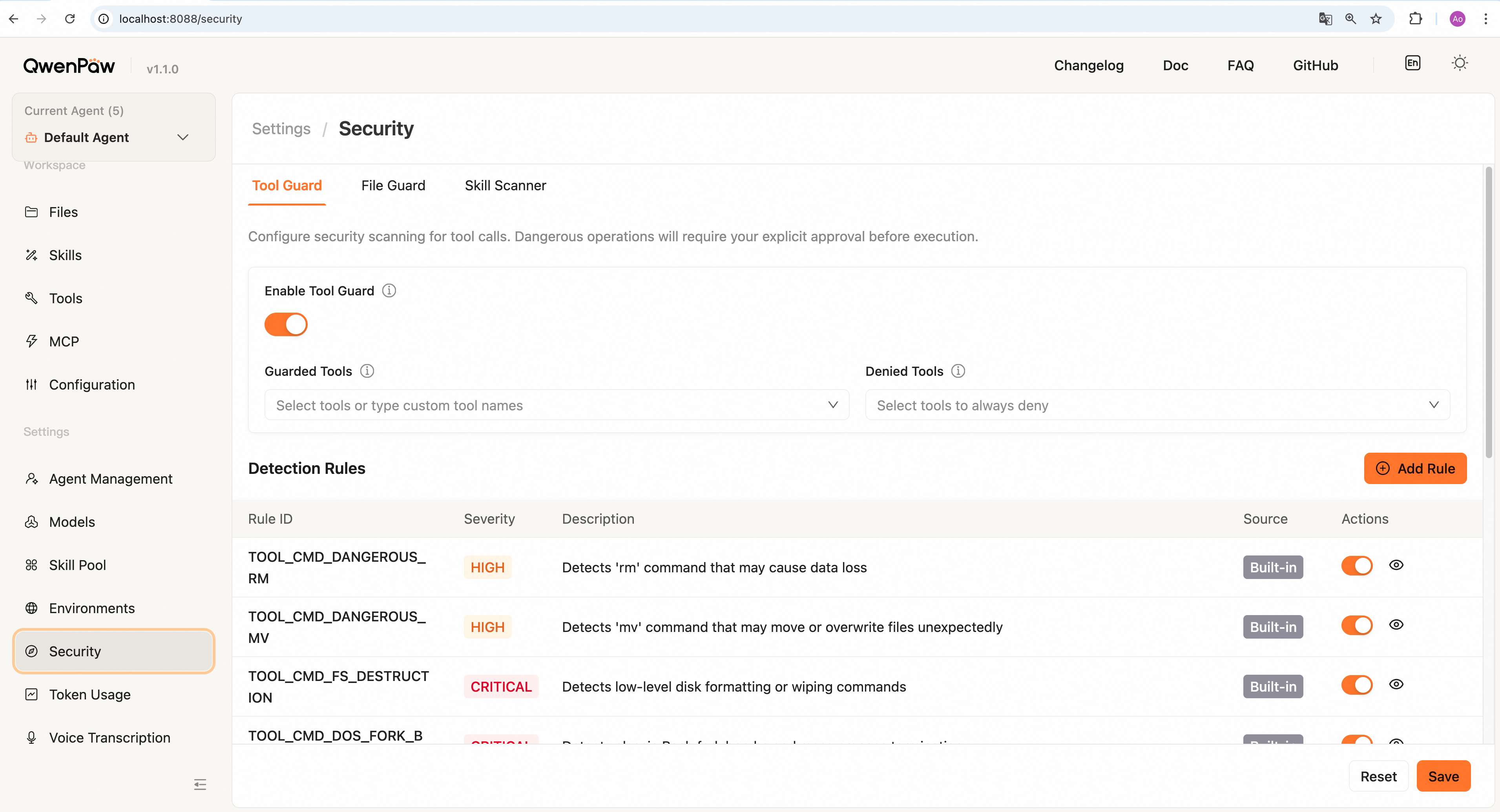
Tabs for tool guard, file guard, skill scanner, etc.: control dangerous-tool parameter blocking, sensitive path access, and skill package scanning policy.
Click Save after changing toggles or rules. Details: Security.
Sidebar: Settings → Token Usage

View LLM token usage over a range, by date and model.
View usage:
- Select a date range (default: last 30 days).
- Click Refresh to fetch data.
- The page shows total tokens, total calls, and breakdowns by model and date.
Query via chat:
Ask e.g. "How many tokens have I used?" or "Show token usage." The agent calls
get_token_usage and returns stats.
Data is stored in
~/.qwenpaw/token_usage.json. Override the filename withQWENPAW_TOKEN_USAGE_FILE. See Config — Environment variables.
Sidebar: Settings → Voice transcription

Configure how voice/audio from channels is handled before it reaches the model (same settings apply to voice input in chat and channel voice messages).
- Audio mode — Auto: transcribe per settings below, then send text (works for most models). Native: send audio as an attachment (only for models that support audio).
- Transcription backend — Off; Whisper API (OpenAI-compatible
audio/transcriptions; configure keys under Models and select the provider here); Local Whisper (requiresffmpegandpip install 'qwenpaw[whisper]').
Save applies to newly received audio. Follow on-page help for details.
| Page | Sidebar path | What you can do |
|---|---|---|
| Chat | Chat → Chat | Chat, voice, attachments, sessions |
| Channels | Control → Channels | Enable/disable, credentials |
| Sessions | Control → Sessions | Filter, rename, delete |
| Cron Jobs | Control → Cron Jobs | Create/edit/delete, run now |
| Heartbeat | Control → Heartbeat | Interval, delivery target, active hours |
| Files | Workspace → Files | Persona files, memory, upload/download |
| Skills | Workspace → Skills | Enable/disable, Hub/upload/custom |
| Tools | Workspace → Tools | Toggle built-in tools by name |
| MCP | Workspace → MCP | MCP clients |
| Configuration | Workspace → Configuration | Iterations, context, retries, compaction, etc. |
| Agent management | Settings → Agent management | CRUD agents, enable/disable |
| Models | Settings → Models | Providers, local models, active model |
| Skill pool | Settings → Skill pool | Built-in and shared reusable skills |
| Environment Variables | Settings → Environments | Keys for tools/skills |
| Security | Settings → Security | Tool guard, skill scan, file guard |
| Token Usage | Settings → Token Usage | Usage by date/model |
| Voice transcription | Settings → Voice transcription | Audio mode, Whisper API/local |
- Config & working directory — Config fields, providers, env vars
- Channels — Per-channel setup and credentials
- Skills — Built-in skills and custom skills
- Heartbeat — Heartbeat configuration
- Context — Compaction and context
- Security — Web login, tool guard, file guard
- CLI — Command-line reference
- Multi-Agent — Multi-agent setup, management, collaboration